
· Brown Walrus · Updated
Device code phishing: the Microsoft 365 sign-in trick that gets past MFA
If an email or web page gives you a code and asks you to enter it at microsoft.com/devicelogin to open a document, close it and call your IT team. Typing that code signs the sender into your Microsoft 365 account, even if you approve the MFA prompt (the second check after your password, like a code or prompt on your phone).
Security researchers call this attack device code phishing. CyberAlberta, which tracks threats facing Alberta organizations, covered it in an advisory, published April 20, 2026. Between March 25 and the report date, CyberAlberta saw three of these attacks. Two came from real email accounts that attackers had taken over at Alberta organizations, and in one case the attacker got lasting access to the victim's account.
What to watch for
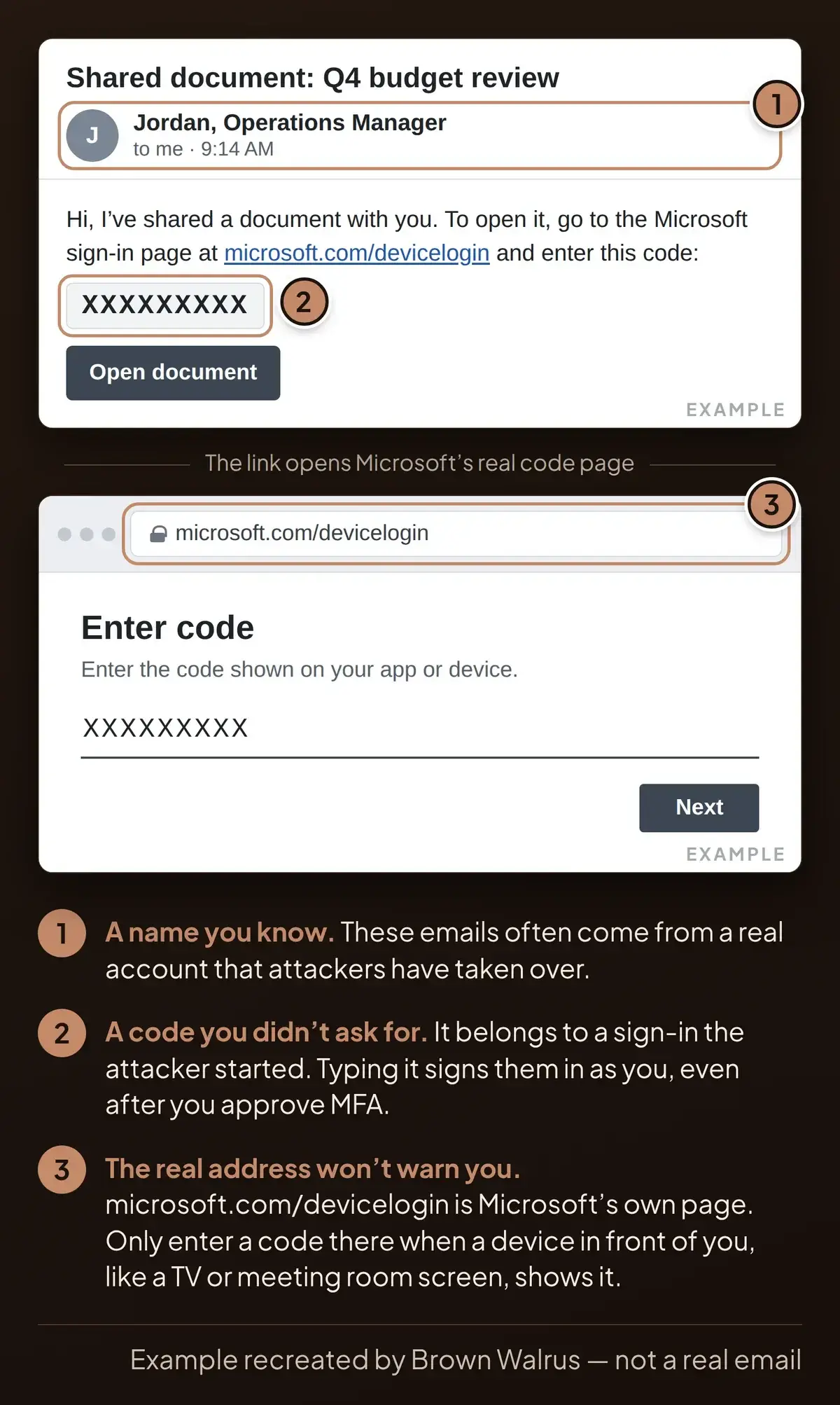
- A code you didn't ask for. An email or web page gives you a code and tells you to enter it to see a shared file, a voicemail or an invoice to sign.
- A link to microsoft.com/devicelogin, or a page that asks you to "Enter code". The page where you type the code is Microsoft's own, so checking the address bar there won't help. The request to enter a code is what gives the attack away.
- A name you know. Two of the three emails in CyberAlberta's report came from hacked accounts at real Alberta organizations.
- A "verify you're human" step first. Some of these pages put a check in front of the code to look more official. A fake "verify you're human" page can also be an attack of its own.
The rule for staff: enter a device code only when you can see the device that showed it, such as a TV, a meeting room screen or a tool you started yourself. A code that reached you by email, chat or a web page belongs to someone else.
If you entered a code
- Call IT now. Tell them when it happened and which message sent you there. Keep the email.
- Leave the cleanup to IT. A new password alone won't sign the attacker out, so IT also has to sign your account out everywhere and check your mailbox for rules you didn't make, which can hide or redirect your mail.
- Warn your regular contacts once IT has secured the account. Attackers use a hijacked mailbox to send the next round of fake messages to the people in it.
If we manage your Microsoft 365, call us at 780-540-7606 and we'll start the cleanup.
Turn it off if nobody needs it
Most offices don't need device code sign-in, the typed-code sign-in that TVs and meeting room screens use, and Microsoft recommends blocking it wherever possible. Ask your IT team to turn it off for everyone and keep it only for devices that use it, like a meeting room screen. If we manage your Microsoft 365, we can check who signs in this way and make the change.
Why it works
Microsoft lets you sign in a TV or meeting room screen by typing a code it shows you. Attackers start one of these sign-ins on their own computer and send you the code. Once you type it on Microsoft's real page, Microsoft signs their computer in as you, even after you approve the MFA prompt.
The attacker never needs your password. CyberAlberta notes that they can stay signed in for 90 days or more, until IT signs them out. In that time they can read your mail and files, hide or redirect messages, and get into other apps you sign in to.
Keep MFA on. It still stops anyone who only has your password.
This is one of four tricks in our cybersecurity trends summary. IT teams can find the technical details and the steps to block device code sign-in in CyberAlberta's report.
Frequently asked questions
What is device code phishing?
Device code phishing is an attack where someone sends you a code and gets you to enter it on Microsoft's real sign-in page, often to open a shared document. The code belongs to a sign-in the attacker started on their own computer. When you enter it, Microsoft signs in the attacker's computer as you, and they get into your Microsoft 365 email and files.
Can someone bypass Microsoft MFA?
Yes, and device code phishing is one way. You complete the MFA check yourself, on Microsoft's own page, so MFA works as designed. The approval goes to a sign-in the attacker started, and Microsoft signs the attacker in as you. MFA still blocks plain password theft, so keep it on, and have IT block device code sign-in where nobody needs it.
Is microsoft.com/devicelogin legit?
The page is Microsoft's own. Smart TVs and meeting room devices send you there to type a code they show on screen. Whose code you type is what matters: enter a code there only when you can see the device that displayed it. If the code came in an email, chat or web page, close it and tell your IT team.
Is my business a target?
Any business that uses Microsoft 365 email can get one of these. The emails often come from a real account that attackers have already taken over, so they reach the people in that mailbox, whatever the size of their business. CyberAlberta saw two of the three attacks in its report sent from hacked accounts at Alberta organizations.
What should I do if I entered a device code from an email?
Call your IT team right away and tell them when it happened and which message sent you there. Keep the email. A new password alone won't sign the attacker out, so IT also has to sign your account out everywhere, delete any inbox rules you didn't create and check for new devices on your account. Then warn your regular contacts.
Can my business turn off device code sign-in?
Yes. Most offices don't need it, and Microsoft recommends blocking it wherever possible. Your IT team can turn it off for everyone and leave it on only for devices that use it, such as a meeting room screen. They should check first who signs in this way, so nothing you rely on stops working. We can do that check for you.
Got a code you didn't ask for?
Don't enter it. Call us at 780-540-7606 and we'll look at the message with you. If we manage your Microsoft 365 and you already typed it in, call now so we can start the cleanup. Through our managed IT and cybersecurity work, we can review your Microsoft 365 setup, find out whether anyone uses device code sign-in and block it where nobody needs it.